Blog · For baseball academies
How to set up booking for a baseball academy
Class scheduling by age group, private lessons beside the group schedule, and tryout registration — one page parents book from without texting you. The full setup, step by step.
Chase Whited · July 16, 2026 · 4 min read
Academy scheduling breaks the single-link booking model. You run 6U skills on Sundays, 9U–10U hitting on Tuesdays, private lessons in the gaps, and a tryout window twice a year. A booking link that shows one meeting type can't hold any of that — so parents text you, and you spend your evenings being the front desk instead of coaching.
The fix is not more links. It's one page that shows the week the way you actually run it, where every session is tappable and books itself. Here's the full setup.
Step 1: Map your week into event types
Before you touch a page layout, list what a parent can actually book. For most academies it comes down to three shapes:
- Group classes — recurring weekly sessions with a head count you need to cap. 6U skills, 9U–10U hitting, high-school flex work.
- Private lessons — one kid, one coach, booked into the gaps around classes.
- Tryouts — a registration window with a hard date, not a recurring session.
Each of these becomes its own event type with its own rules. A class runs 60 minutes with a 12-kid cap. A lesson runs 30 or 45 minutes with a buffer after it so you can reset the cage. A tryout takes registrations for exactly two Saturdays and nothing else. Keep the names parent-readable — "9U–10U Hitting (Tuesdays)" beats "HIT-2."
Step 2: Put the whole week on one Schedule Page
A Schedule Page is one URL that shows every bookable session, grouped the way parents think about it. For an academy, group by day of week or by age band — a parent scanning for "what can my 8-year-old do on Tuesday" should find the answer in one look.
Pick the grouped-by-day layout, add your class and lesson event types, and give each one a label that carries the age band. Every session on the page is tappable, and the tap opens the booking flow for that exact session — parents never pick a wrong time from a generic calendar.
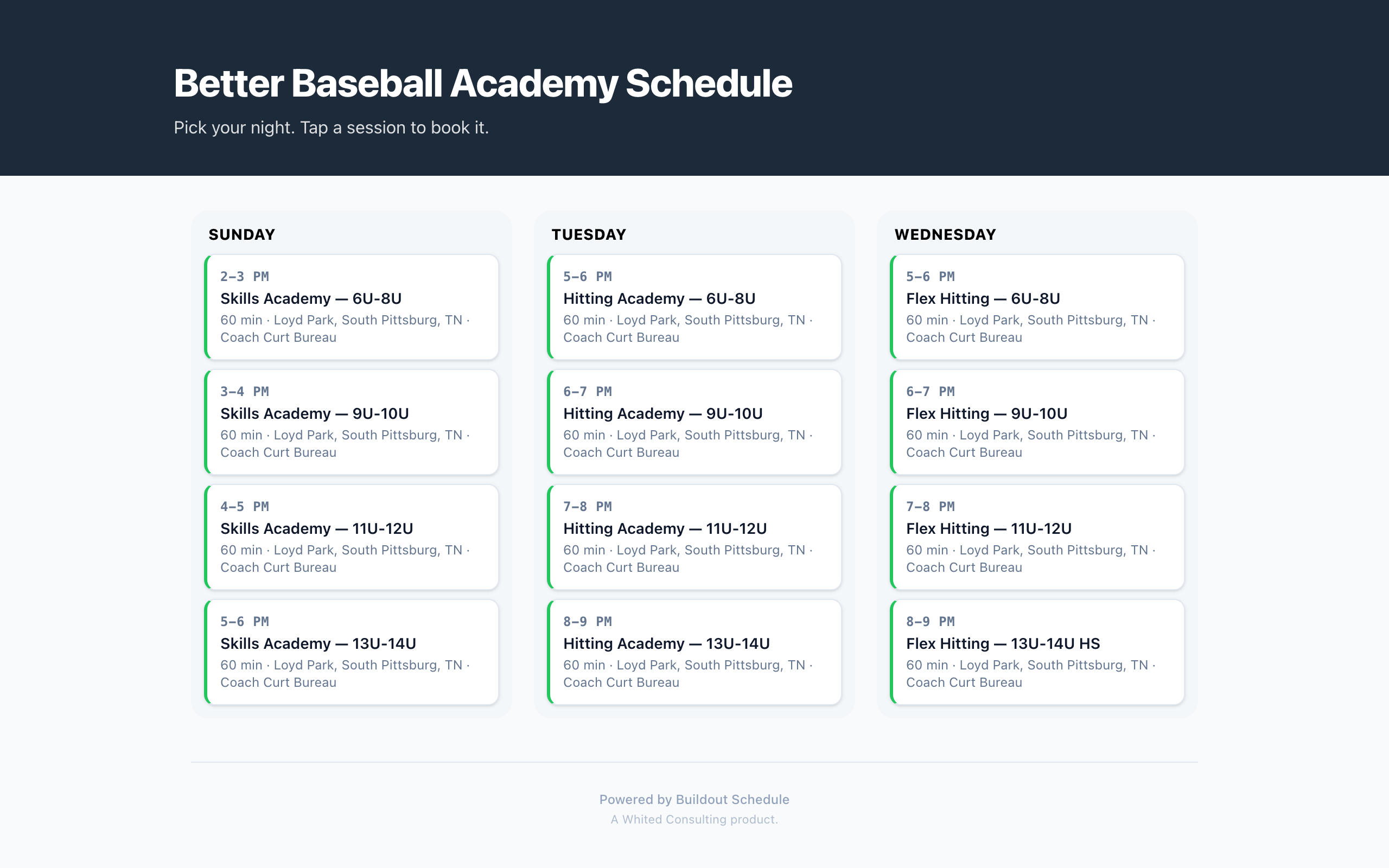
This is the page you put everywhere: the link in your Instagram bio, the QR code on the flyer at the field, the reply you send when someone asks "how do I sign up?" One URL, kept current from your dashboard, so the schedule on the page is never a season behind the schedule in your head.
Step 3: Run private lessons beside the group schedule
Lessons need different rules than classes, and that's the point of keeping them as separate event types on the same page:
- Duration options. A 30-minute tune-up and a 60-minute full session as separate types, each with its own price.
- Buffers. Ten minutes after every lesson so back-to-back bookings don't stack up while you're still picking up balls.
- Minimum notice. Require at least a day's notice so a 6 a.m. booking doesn't appear on today's calendar.
All three live in your availability rules, and the booking engine enforces them — a slot that violates your buffer or notice window never renders as available.
Step 4: Handle tryouts as a registration window
Tryouts are where academies usually fall back to a paper list. Don't. Build a tryout event type, use date overrides to open only the tryout dates, and size the evaluation slots so each family books its own window.
Then add intake questions at booking: age, primary position, current team, seasons of experience. When a family books, the answers are attached to the booking — you walk onto the field with a roster and context instead of a clipboard and twenty introductions.
Step 5: Put a waitlist on the sessions that fill
When a session time is taken, the page says so, and the waitlist takes over: when a family drops, the open spot offers itself to the next family in line with a claim window. Nobody refreshes a page, and you never send the "a spot opened up, first to reply gets it" group text again.
Step 6: Turn on reminders and stop chasing no-shows
A booked class three weeks out is a forgotten class. The default cadence runs on its own: confirmation at booking, a reminder 24 hours out, another an hour before. Every email carries a self-serve reschedule link so parents fix their own conflicts. The details are in reminders, and the pre-season version of this checklist lives in the baseball coach booking checklist.
Start from the template, not from zero
The Baseball Academy preset sets this whole structure up at signup: a weekly class schedule grouped by age, lesson and tryout session types, and a coach page with a book button. Everything lands as drafts, so you rename the classes to your program and publish when it looks like your academy.
If you want the wider picture of what the booking system does for an academy, that's on the baseball academies page: waitlists, reminders, and the coach page parents see first.
The whole setup is an evening of work: list the event types, build the page, turn on the waitlists, turn on reminders. After that, the schedule answers the questions your phone used to.
Keep reading
- The baseball coach booking checklist
Eight pre-season setup items for a small academy, with the why behind each one - event types, caps, waitlists, tryout intake, reminders, the coach page, and the QR flyer.
- Booking for fitness studios that run classes and 1:1s
Group classes need caps and waitlists. Personal training needs buffers and its own price. Most booking tools handle one shape or the other — here's how to run both on one page.
- The scheduling metric most service businesses miss
You track revenue and no-shows but not booking conversion — the share of page visitors who actually book. How to read the funnel, find the leak, and fix one thing at a time.