Blog · How-to guides
How to set up buffers and minimum notice without losing bookings
When a buffer should be 0, 10, or 30 minutes, how minimum notice trades same-day bookings for prep time, and the over-protected calendar that quietly shows nothing as available.
Chase Whited · July 16, 2026 · 5 min read
Availability settings fail in two directions. Too loose, and a 6 a.m. booking appears on today's calendar, back-to-backs stack up with no room to breathe, and someone reserves a slot four months out that neither of you will remember. Too tight, and your booking page quietly starts showing nothing — visitors open it, see no times this week, and leave without telling you why.
Most owners only guard against the first failure. The second one is worse, because it's invisible: your calendar feels protected while your page turns bookings away. Here's how to set each control, and how to catch the moment protection tips into strangulation.
Buffers: 0, 10, or 30 minutes
A buffer is padding before or after a booking that the engine treats as busy — a slot that would violate it never renders as available. The right size depends on what happens between two meetings, not on how busy you feel:
- Zero. Back-to-back video calls with no notes to write. If your meetings end on time and the next one is a browser tab, padding just deletes sellable slots.
- Ten minutes. You need to write notes, reset a room, or just stand up. This is the honest default for most 1-on-1 work — a lesson, a consult, a coaching call. Ten minutes after each booking costs you little and keeps the third appointment of the day from starting frazzled.
- Thirty or more. Something physical happens between appointments: a drive to the next address, a treatment room turnover, equipment teardown. Contractors running estimates across a service area live here — without a real drive buffer, the calendar happily books you in two towns at the same hour. The estimate-day version of this setup is in booking free estimates that turn into jobs, and the wider contractor picture is on the contractors page.
One trap: don't use buffers to fix a dishonest duration. If your "30-minute" call always runs 45, the fix is a 45-minute event type, not a 15-minute buffer — the buffer version shows visitors fewer, weirder slot times for the same real calendar cost.
Minimum notice: the same-day trade-off
Minimum notice is how close to now a booking can land. Set it by asking one question: what does a booking two hours from now cost me?
- If same-day speed is your edge, keep notice short. A contractor, a sales rep, an agent — the whole advantage of a booking link is answering while competitors are still checking voicemail. Two to four hours of notice protects you from a slot appearing mid-drive without giving away today.
- If every meeting needs prep, take 24 hours. A consultant who reviews the client's numbers before a call, a coach who builds a session plan — a same-day booking you can't prepare for is a worse meeting wearing a booking's clothes.
- If a room or staff has to be arranged, take 24 to 48. Physical setup doesn't compress just because the calendar allowed it.
Know what you're paying, though. Long notice windows don't just filter rushed bookings — they turn away the highest-intent visitor you get, the one who wants help now. A 48-hour window on a service people book impulsively is a leak, not a shield. Start at the short end for your business type and lengthen only when a real same-day booking actually burned you.
Maximum advance: don't book next quarter's no-show
The maximum advance window caps how far out someone can book. Uncapped calendars collect far-future bookings, and far-future bookings rot — the person who booked something 90 days out is booking a version of their life they're guessing at. Many of those become reschedules or empty slots.
Thirty to sixty days covers most service businesses. It keeps the page full of times that feel real, and it means you're not promising availability for a season you haven't planned yet. If you run recurring clients who like locking in ahead, sixty; if your weeks change shape often, thirty.
Date overrides are for real life
Weekly hours describe your normal week. Date overrides handle the actual one: the holiday, the conference, the kid's tournament, the Friday you're taking because you can. Block the specific date and the engine removes those slots — no fake "busy" calendar events, no editing your weekly hours and forgetting to change them back.
Overrides also work in the open direction. A one-off Saturday you're willing to work becomes bookable without making every Saturday bookable forever. Use overrides for exceptions and weekly hours for patterns, and neither one accumulates lies.
The over-protection failure mode
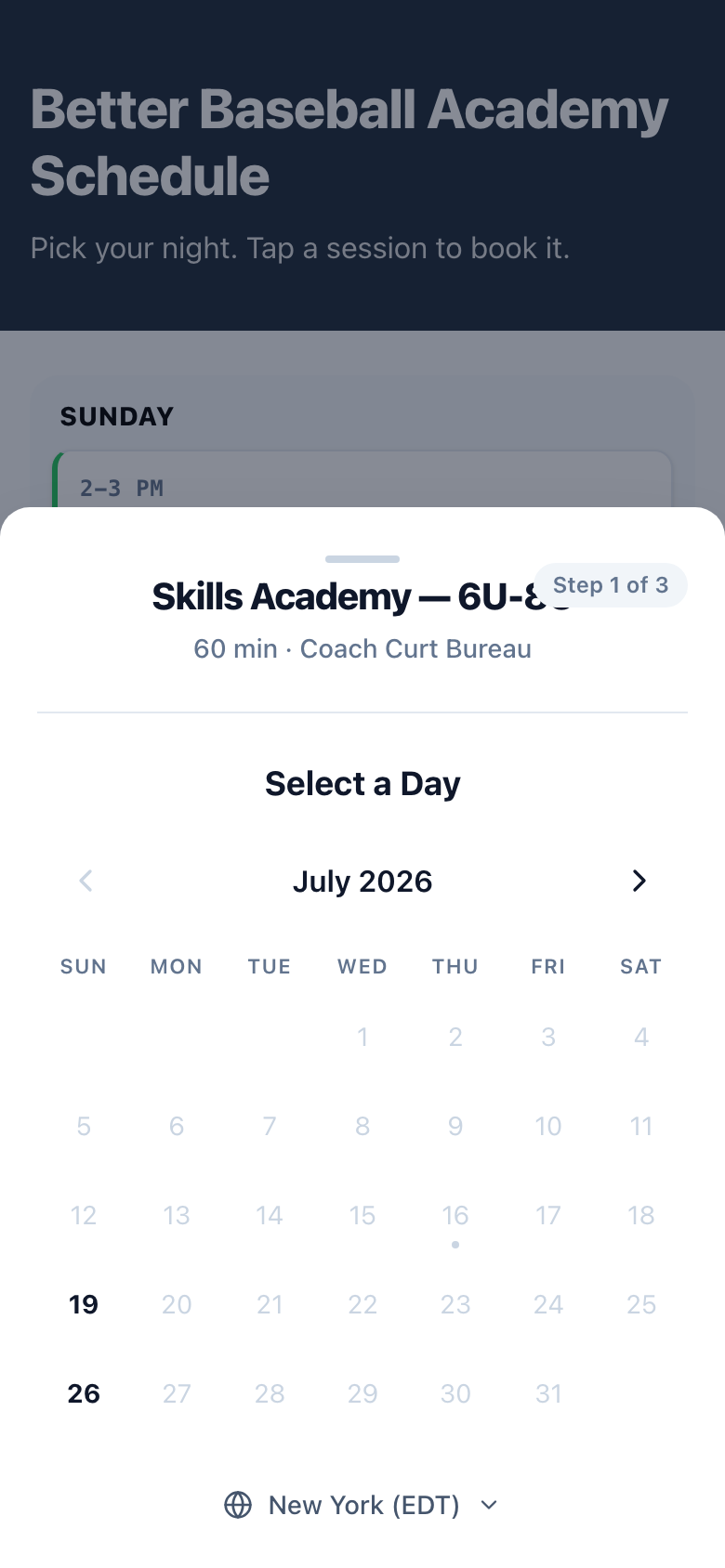
Here's how a calendar strangles itself, one reasonable setting at a time. Say you offer a 60-minute session, available 3 to 6 p.m. on weekdays. Three slots a day — fine. Now add a 30-minute buffer after each: two slots. Add 48-hour minimum notice: today and tomorrow vanish from the page. Cap advance booking at two weeks and let your synced calendar block a few afternoons, and a visitor opening your page sees maybe five bookable times across two weeks — or none.
Every individual setting had a defensible reason. The sum is a page that reads as "this person has no room for me," and visitors don't file a complaint — they close the tab. You'll experience it as "the link isn't working" or "nobody books anymore," when the truth is that nothing renders as available.
Two habits catch it:
- Open your own booking page in a private browser window once a week. Look at it as a stranger. If the first screen of available times looks thin, a setting is overcharging you.
- Watch the funnel. If you run a Schedule Page, the per-page analytics show views against bookings started. Views holding steady while bookings sag is the signature of an availability problem, not a demand problem.
When you find it, loosen one control at a time (usually the notice window first, then the buffer) and re-check the page after each change so you know which setting was the choke point.
A settings check before you walk away
All of these controls live in your availability rules, per event type. Before you close the tab:
- Buffer matches what physically happens between meetings — not your anxiety.
- Minimum notice is as short as your prep truly allows.
- Maximum advance is 30 to 60 days unless you have a reason.
- Overrides cover your next three known exceptions.
- Your page, viewed logged-out, shows real choice in the first screen.
Protection you can't see the cost of isn't free. Check the page the way a stranger would, and let the settings earn their keep.
Keep reading
- How to write a booking page that converts
The copy on a booking page does more work than the calendar. What to say in the title, the description, and the button — with the rewrites that turn lookers into booked meetings.
- The anti-lorem-ipsum guide to your booking page
Placeholder copy and corporate filler mark a booking page as template-fresh. The phrases that give it away, and a three-pass rewrite that swaps filler for facts.
- How to cut your scheduling tool cost to zero without cutting features
The per-seat math a solo operator pays for one booking link, what a free plan has to include to actually replace it, and the honest list of who should keep paying.